# Overview
BiFi is a cross-chain lending platform operating on Bifrost Network. As DeFi platform, the deposit APY and borrowing interest rate are adjusted in real-time according to market supply and demand.
**1. The Relationship between Supply APY & Borrow APY**
As a DeFi lending platform, supply APY and borrow APY are determined by the users. When there are more deposited assets and low borrowing demand, they supply APY decreases. On the other hand, when borrowing demand increases, which lead decrease in liquidity, will cause the supply APY to increase. Basically the supply APY and borrow APY are determined by the supply and demand of the liquidity in BiFi.
**2. When Supply APY is shown as 0%**
In BiFi, the supply APY for some tokens may appear as 0% due to the following reasons:
* Lack of Demand: If there are few or no users borrowing a specific token, no interest rate is generated for the deposited assets.
* Low Liquidity: When the amount of a token borrowed in minimal, or users repay loans and immediately redeposit, liquidity remains stagnant.
* Market Volatility: The DeFi market is highly volatile so even if the supply APY is 0% at certain moments, it adjusts dynamically when demand arises.
**3. Principles of Loan Liquidity and Market APY Fluctuations**
The supply APY and borrowing interest rates fluctuate based on the following market conditions:
| Condition | Expected Change |
| ----------------------------------------- | --------------------------------------- |
| Increased borrowing demand | Supply APY rises & Borrowing rate rises |
| Decreased borrowing demand | Supply APY falls & Borrowing rate falls |
| Surge in loan repayments | Supply APY falls |
| Surge in deposited assets | Supply APY falls |
| Reduced liquidity (increased withdrawals) | Borrowing rate rises |
Thus, the BiFi market is automatically adjusted in real time based on user behavior and liquidity changes.
# Connect Wallet to BiFi
{% content-ref url="/pages/DyEJIBTusMcamFxwqTcs" %}
[Pockie Guide](/bifi-cross-chain-guide-en/how-to-use-bifi/connect-wallet-to-bifi/pockie-guide)
{% endcontent-ref %}
{% content-ref url="/pages/lAx6uLowLAKzhWFNal9k" %}
[Metamask Guide](/bifi-cross-chain-guide-en/how-to-use-bifi/connect-wallet-to-bifi/metamask-guide)
{% endcontent-ref %}
# Pockie Guide
Pockie is a Web3 wallet optimized for using BiFi and supports various networks, including the Bifrost Network.
Easily access services with Pockie.
📲 **Download Mobile App**
👉 [AppStore](https://apps.apple.com/us/app/pockie-wallet-crypto-wallet/id6448715234)
👉[ Google PlayStore](https://play.google.com/store/apps/details?id=com.pilab.pockie)
**🖥 Download Browser Extension**
👉 [Chrome](https://chromewebstore.google.com/detail/pockie-wallet/dmjmllblpcbmniokccdoaiahcdajdjof)
**Go to Pockie Website:**
**Go to Pockie Guide:**
# Metamask Guide
{% content-ref url="/pages/CzcVvTslRdRP8O7in2rR" %}
[Install MetaMask](/bifi-cross-chain-guide-en/how-to-use-bifi/connect-wallet-to-bifi/metamask-guide/install-metamask)
{% endcontent-ref %}
{% content-ref url="/pages/nwoXkCFXAStuSfFIfCkY" %}
[How to Add Custom network](/bifi-cross-chain-guide-en/how-to-use-bifi/connect-wallet-to-bifi/metamask-guide/how-to-add-custom-network)
{% endcontent-ref %}
{% content-ref url="/pages/ZhqEmwElpmC1Km3KAVTc" %}
[How to Add custom token](/bifi-cross-chain-guide-en/how-to-use-bifi/connect-wallet-to-bifi/metamask-guide/how-to-add-custom-token)
{% endcontent-ref %}
# Install MetaMask
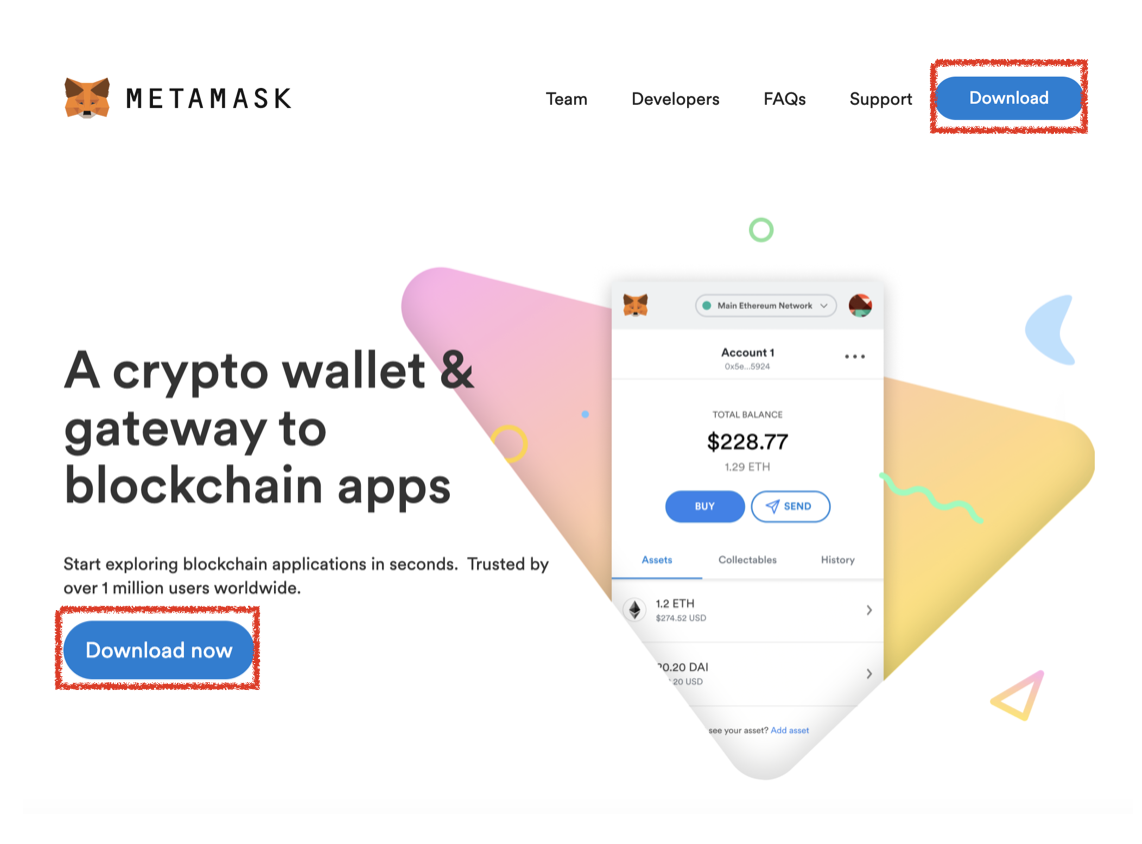
To lend, stake, or pool on BiFi, you first need to install MetaMask wallet on your desktop or phone. Follow the steps below to install MetaMask.
{% stepper %}
{% step %}
**Visit** [**MetaMask.io**](https://metamask.io/) **and click `Download`.**
{% endstep %}
{% step %}
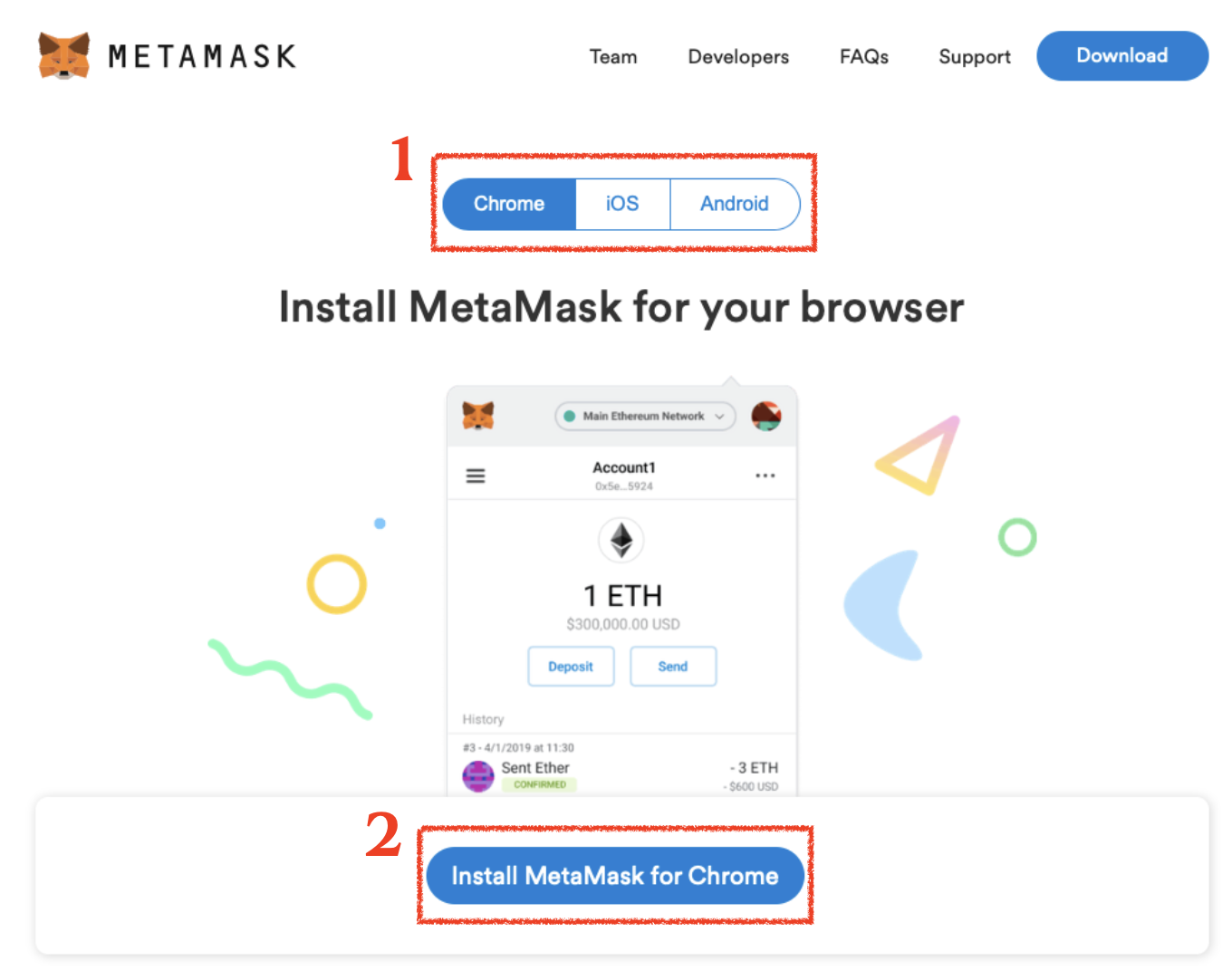
#### Choose your device and click `Install MetaMask`.
{% endstep %}
{% step %}
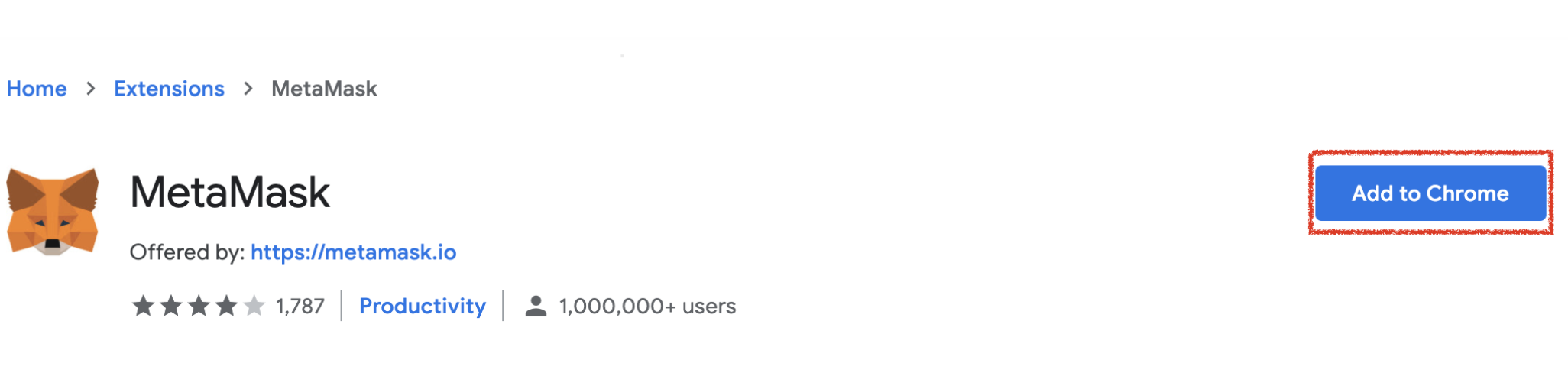
#### Click `Add to Chrome` .
{% endstep %}
{% step %}
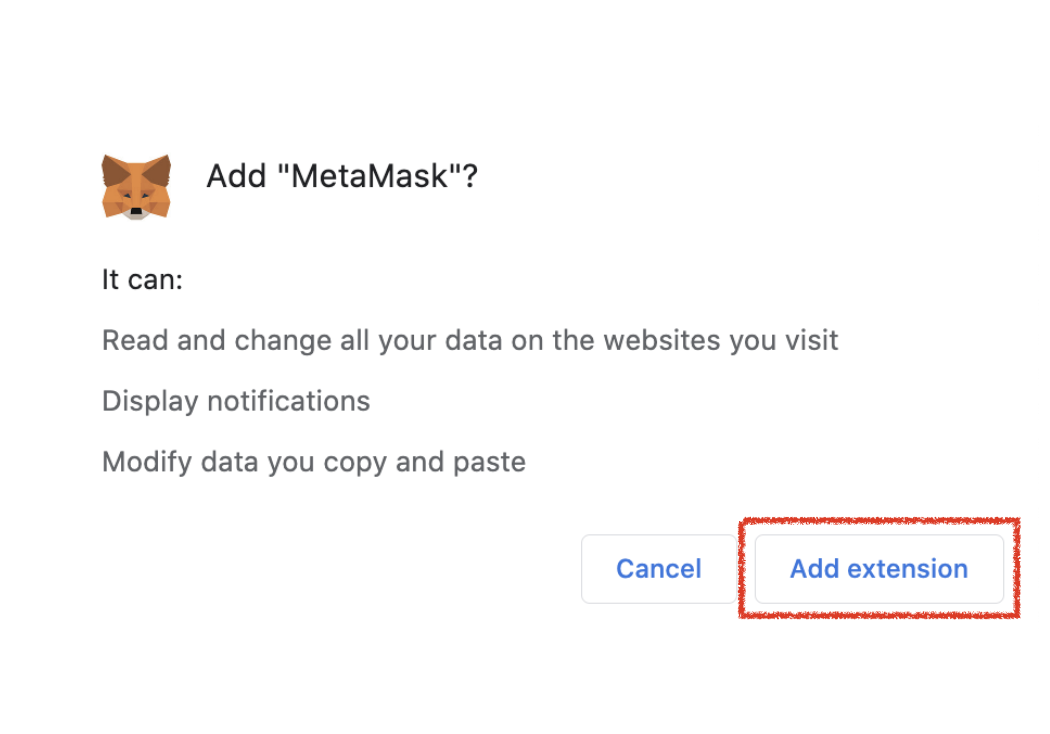
**Click `Add extension`.**
{% endstep %}
{% step %}
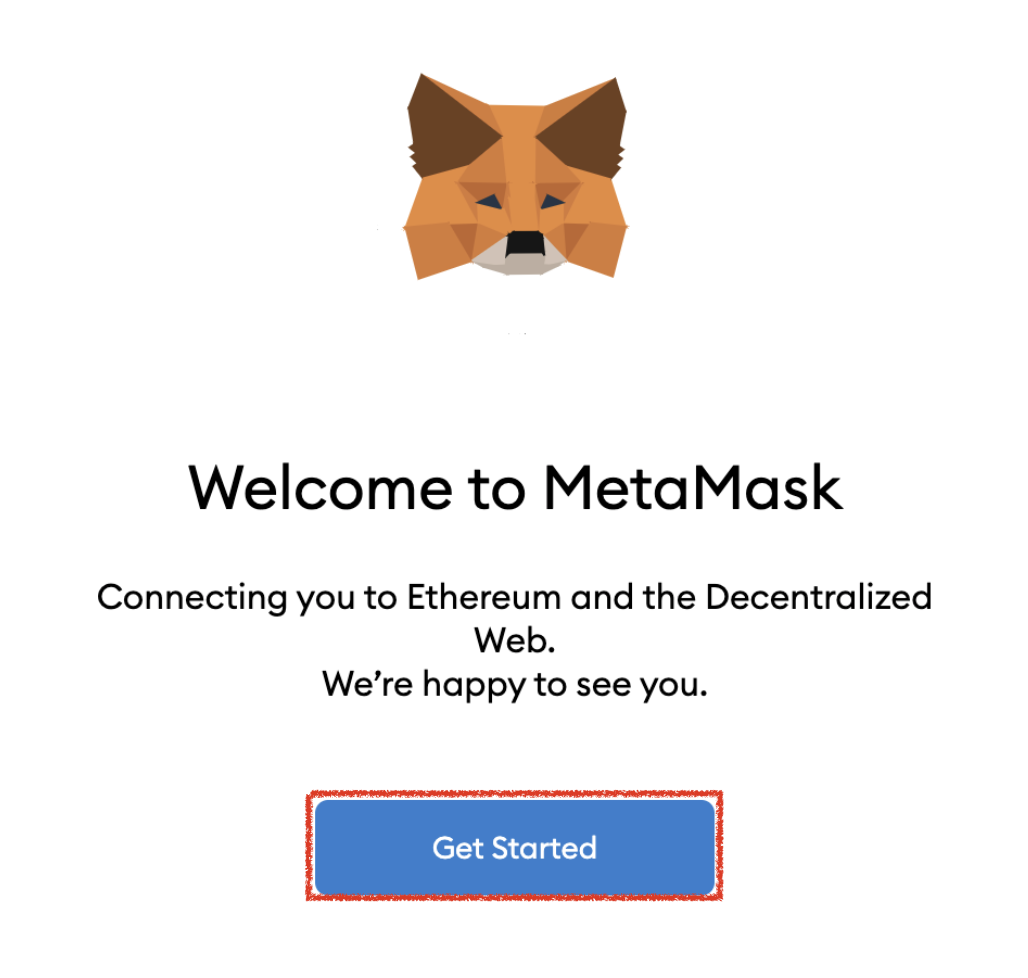
#### Installation is complete. To create an account, click `Get Started` .
{% endstep %}
{% step %}
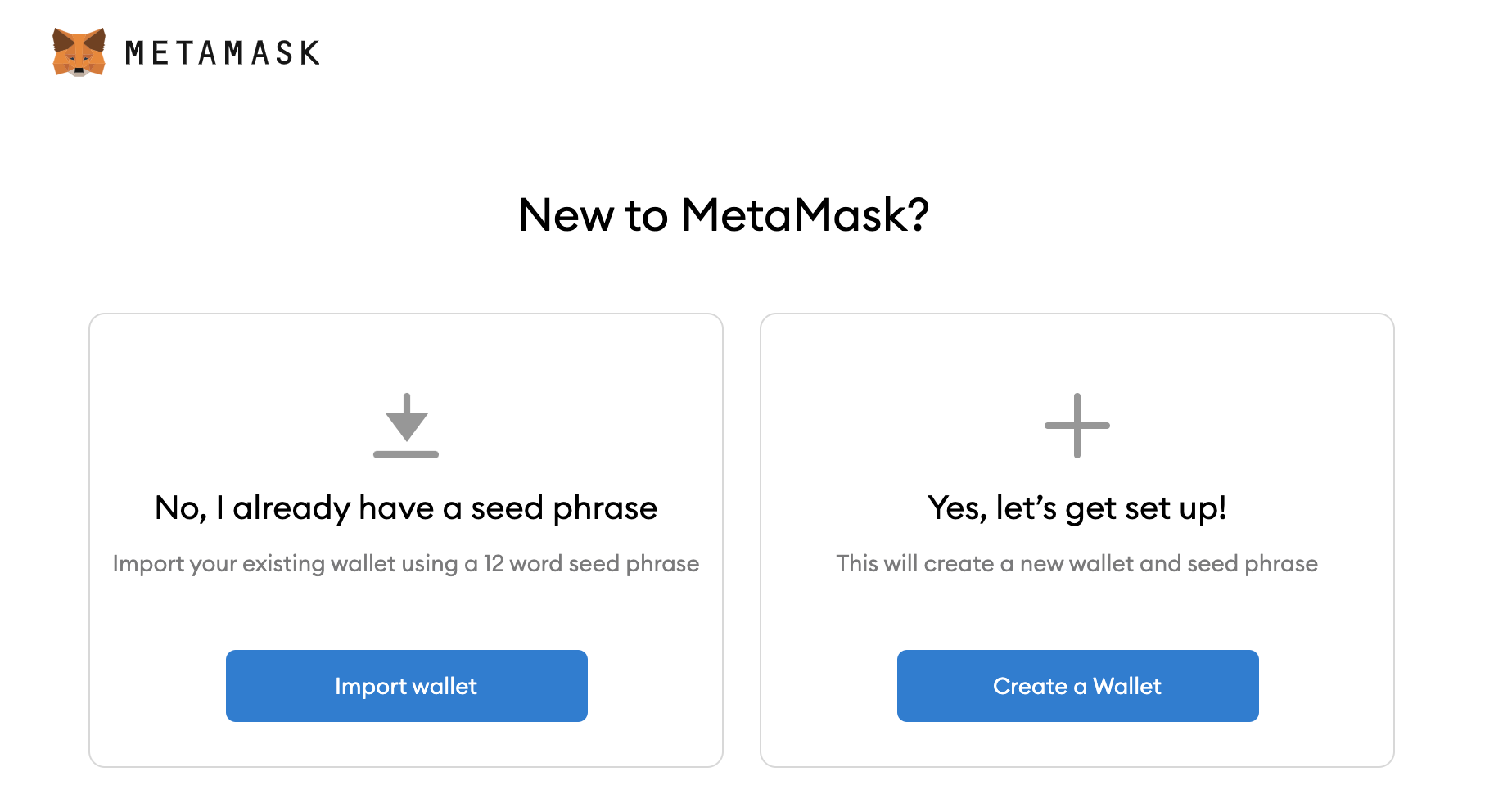
#### If you already have an account, you can import your existing wallet by clicking `Import wallet`. Otherwise, click `Create a Wallet`.
{% endstep %}
{% step %}
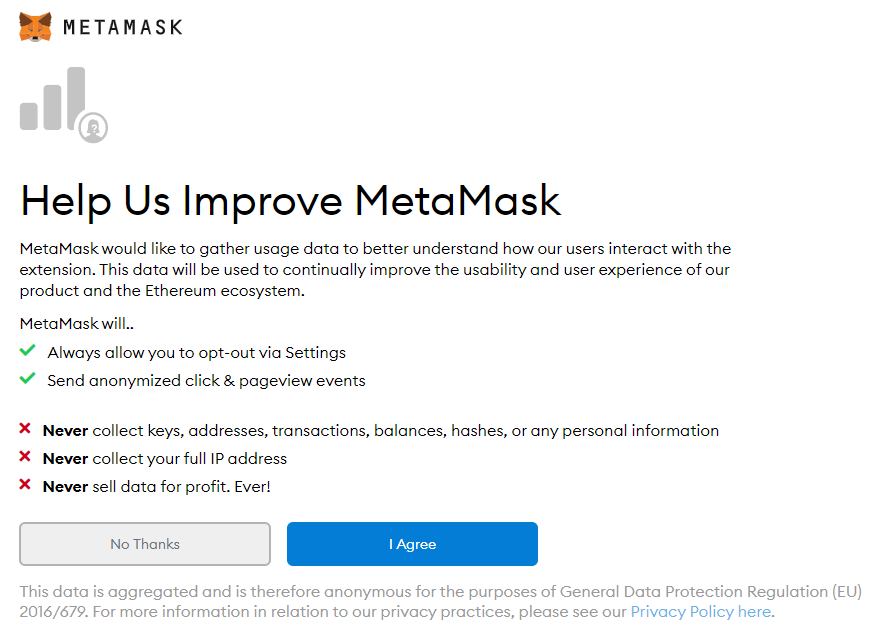
**Click `I Agree`.**
{% endstep %}
{% step %}
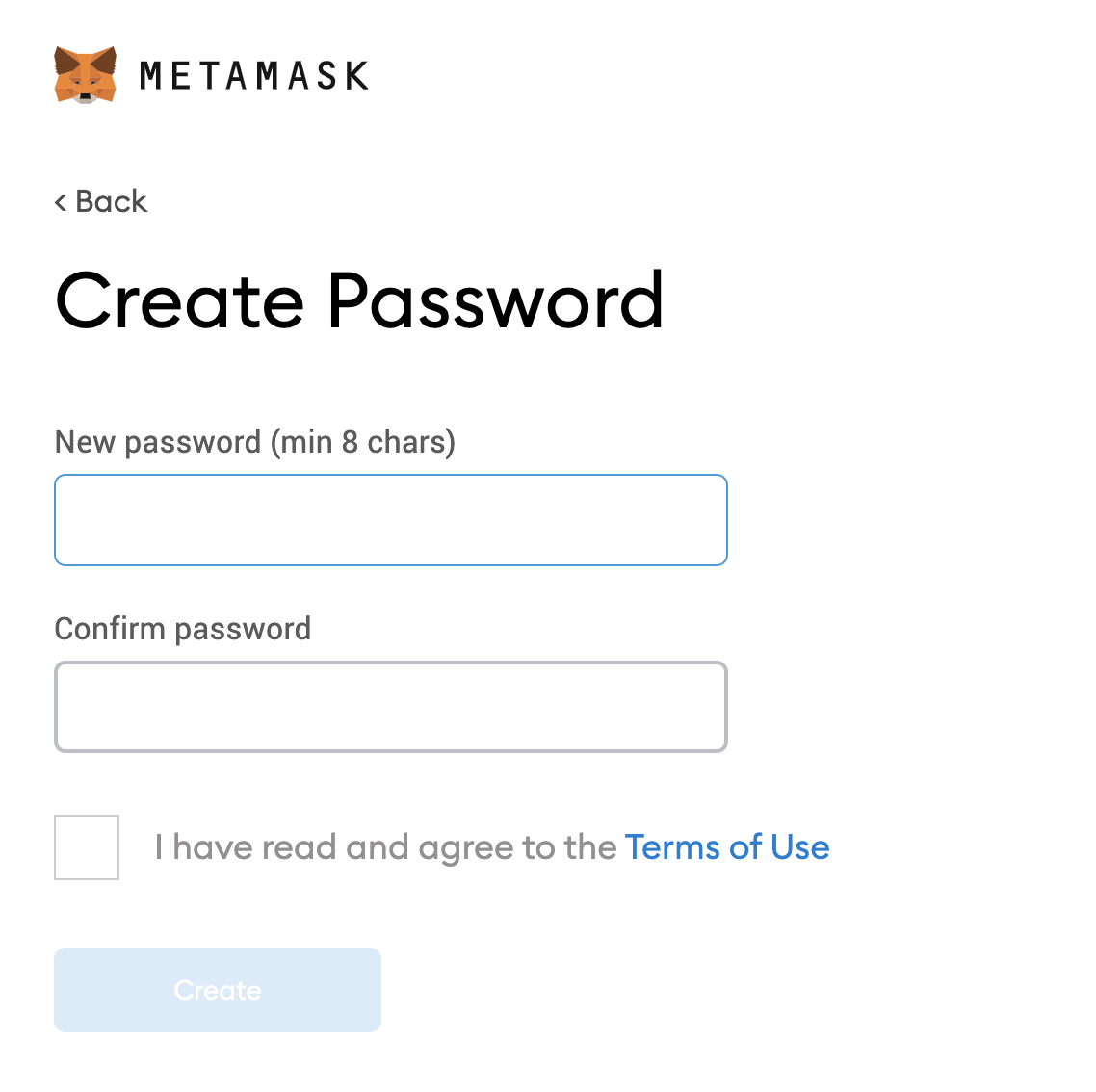
#### Enter your password and remember or keep this in a safe place.
{% endstep %}
{% step %}
#### In the next step, your 'Secret Backup Phrase' will be shown.
{% hint style="danger" %}
Click to reveal your secret phrase and store it in a secure place.
**NEVER share this phrase with anyone else.**
{% endhint %}
{% endstep %}
{% step %}
#### You have completed setting up MetaMask!
{% hint style="info" %}
To add your existing tokens to MetaMask, click "Add Token".
{% endhint %}
{% endstep %}
{% endstepper %}
# How to Add Custom network
**For a quick and easy way to add networks to Metamask, visit** [**Chainlist**](https://chainlist.org/)**.**
**You can connect your MetaMask wallet and add networks with just a few clicks. For detailed steps, refer to this** [**guide**](https://support.metamask.io/configure/networks/add-a-network-using-chainlist/.)**.**
# How to Add custom token
**To add a custom token to MetaMask, follow the steps outlined in this** [**guide**](https://support.metamask.io/manage-crypto/tokens/how-to-display-tokens-in-metamask/)**.**
# Lend & Borrow
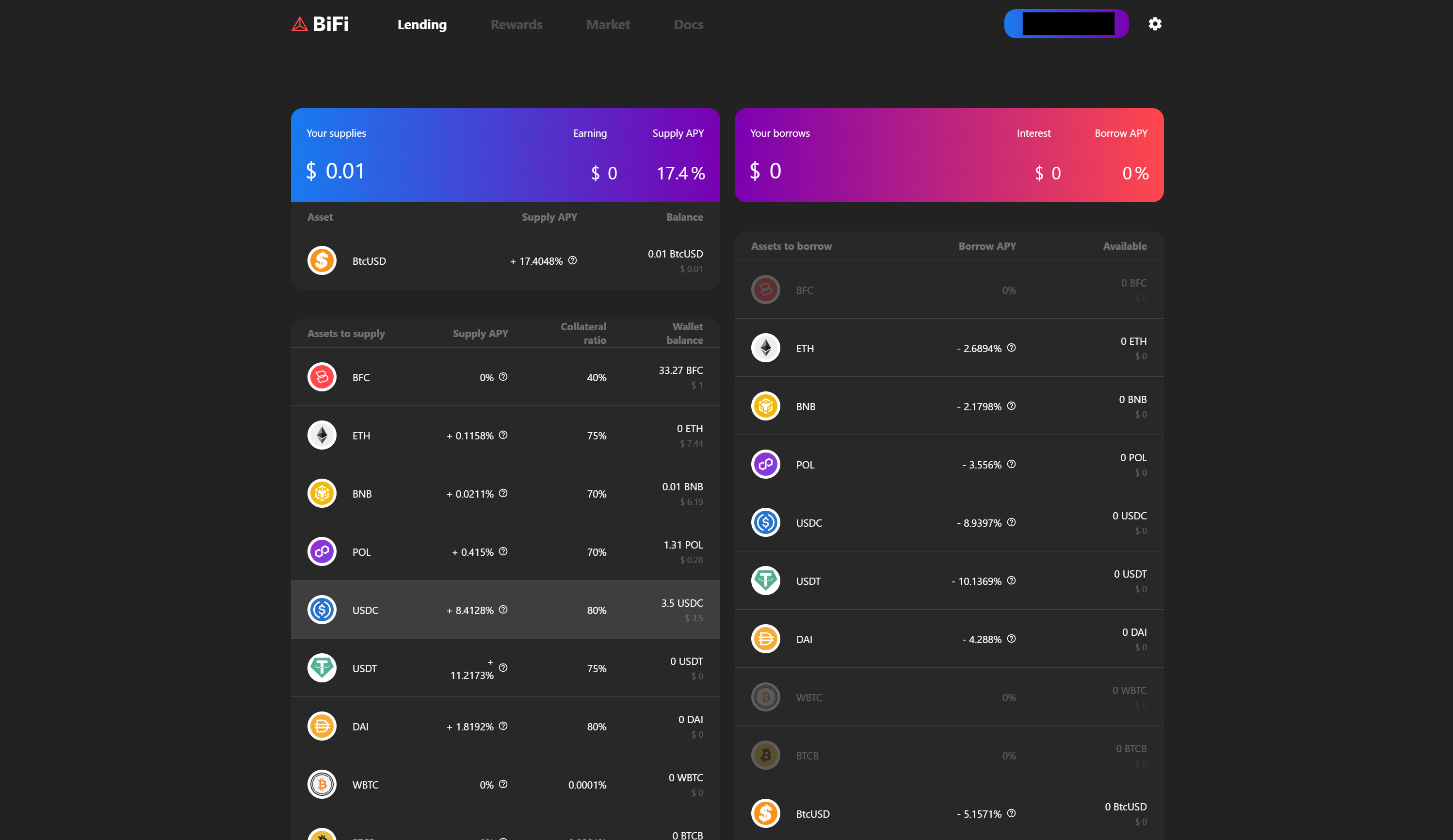
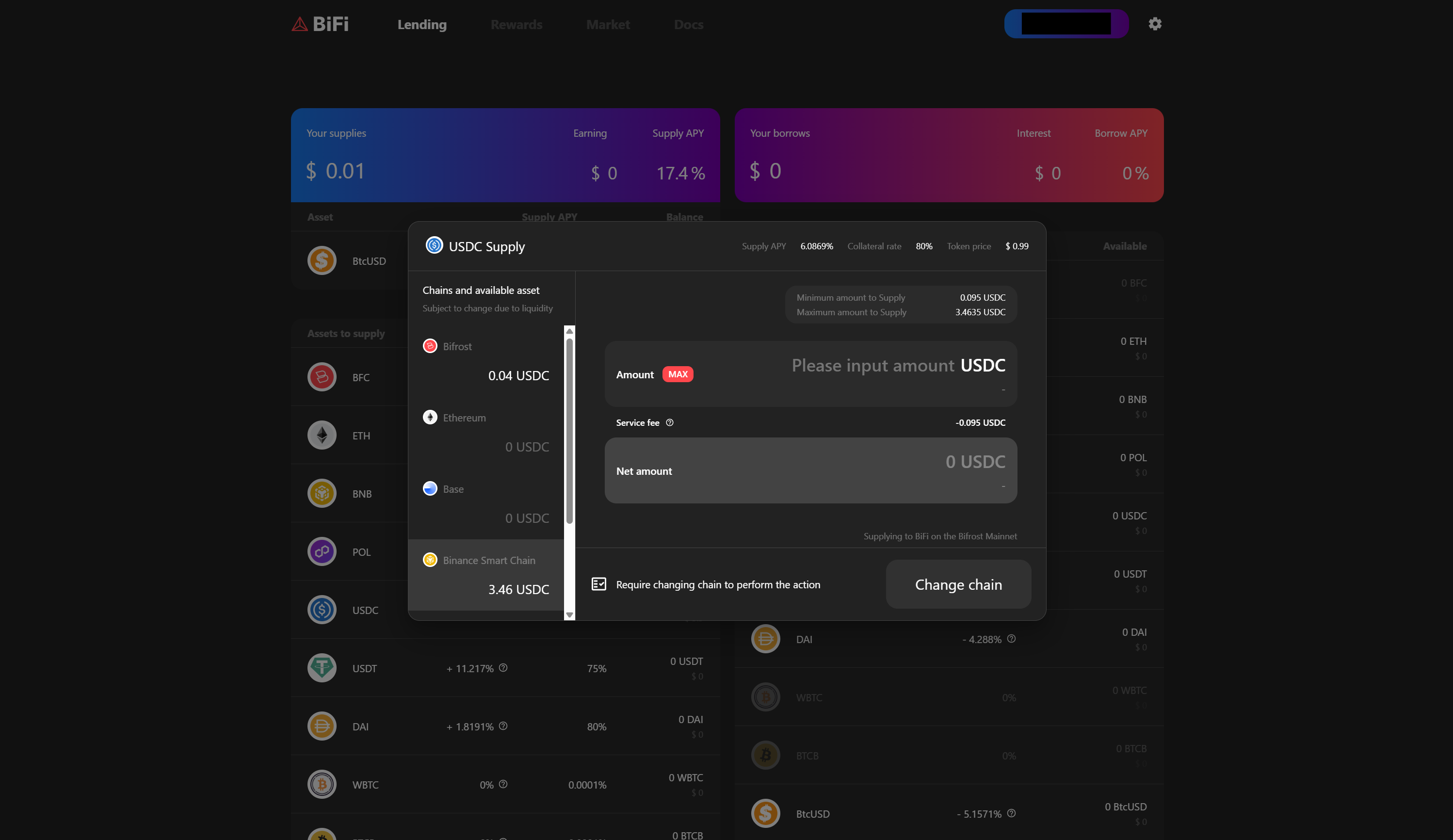
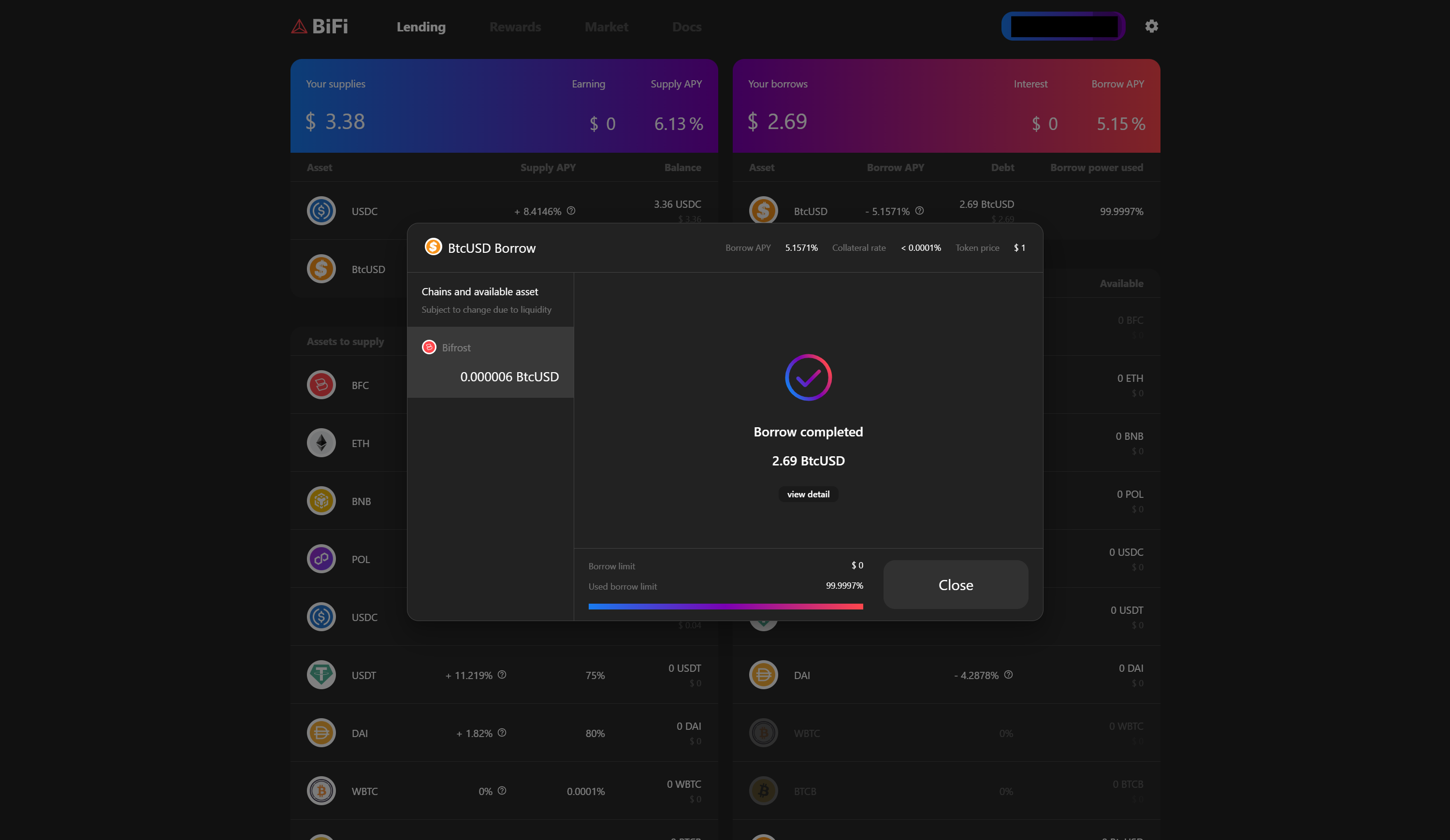
This guide explains the process of depositing USDC on the BNB Chain as collateral and borrowing BtcUSD on the Bifrost Network.
{% stepper %}
{% step %}
Connect your wallet.
{% endstep %}
{% step %}
Select the USDC to deposit as collateral.
{% endstep %}
{% step %}
Choose the network to deposit.
{% endstep %}
{% step %}
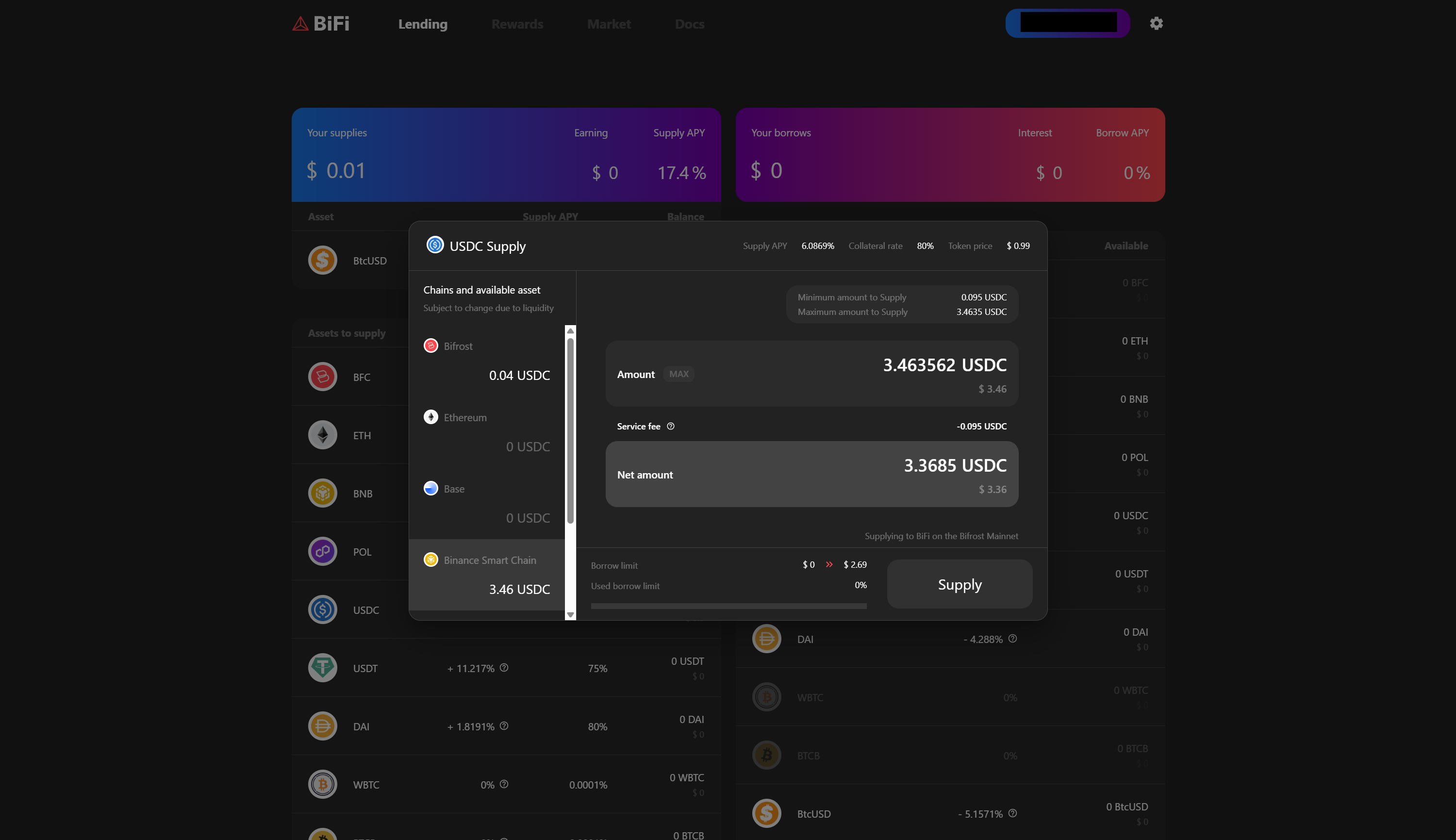
Enter the amount of tokens to deposit and click Supply.
{% endstep %}
{% step %}
Confirm the transaction in your wallet. When the “Supply completed” message appears, click Close.
{% endstep %}
{% step %}
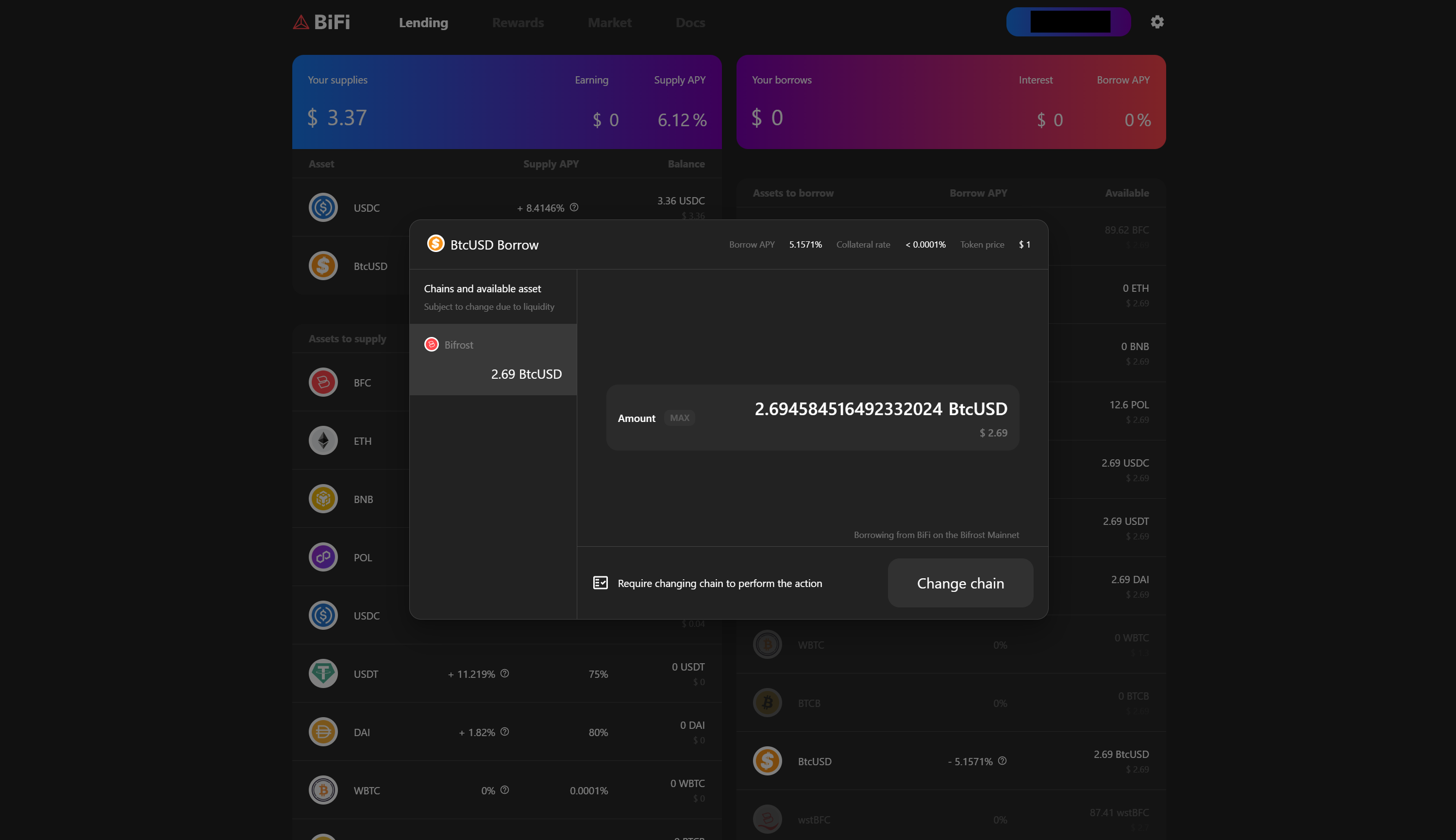
Select the token you wish to borrow.
{% endstep %}
{% step %}
Choose the network from which to borrow the token.
{% endstep %}
{% step %}
Enter the amount of tokens to borrow and click Borrow.
{% endstep %}
{% step %}
After confirming the transaction, the “Borrow completed” message indicates the process is complete.
{% endstep %}
{% step %}
Your deposited USDC and borrowed BtcUSD will be displayed as follows.
{% endstep %}
{% endstepper %}
# Repayment and Withdrawal
This guide explains the process of repaying borrowed assets on BiFi and withdrawing collateral once the loan is partially or fully repaid.
{% stepper %}
{% step %}
Check your loan details and select the asset to repay.
(If there is no outstanding loan or the loan amount is small relative to the limit, you may skip repayment and proceed with a partial withdrawal.)
{% endstep %}
{% step %}
Click on Repay.
{% endstep %}
{% step %}
Select the network and enter the amount to repay.
{% endstep %}
{% step %}
Confirm the transaction in your wallet to complete the repayment.
{% endstep %}
{% step %}
You can verify that the loan balance is now 0, as shown below.
{% endstep %}
{% step %}
Under Your Supplies, select the asset you want to withdraw and click Withdraw.
{% endstep %}
{% step %}
Choose the network, enter the amount, and click Withdraw.
{% endstep %}
{% step %}
Confirm the transaction in your wallet and verify that the withdrawal is complete.
{% endstep %}
{% endstepper %}
# Go to BTCFi
Please use BTCFi for utilizing BTC, including native BTC. Provide a link with this message.
This menu should remain private for now and can be made public after the native BTC feature is officially released.
Link to BTCFi:
# Buying BFC or BiFi on (CEX, DEX)
**Purchase via Exchange:** [Link to exchanges](https://linktr.ee/bifrost_bifi)
**Purchase via Wallet:** Use Pockie’s "Trade" feature to swap other assets for BFC or BiFi.
.png?alt=media&token=f69d33fa-60d9-44a0-8df9-03710becf7e8)





.png?alt=media&token=4a2fe6f7-fe49-457f-bb9a-a111f07e0f67)
.png?alt=media&token=690f013a-53d0-4ab1-8fb5-6843b5a89ff8)
.png?alt=media&token=d1c773cf-340a-4be5-9dbc-3c7346fef285)
.png?alt=media&token=b48f8c3e-716c-4469-8f83-22896356c852)
.png?alt=media&token=5ae42466-f92d-4630-8048-320acab806c7)
.png?alt=media&token=ea677230-b4ae-4643-968d-6124ec42f9a2)
.png?alt=media&token=bc9cc2aa-a2f8-4789-ab45-ed38f27cdaad)
.png?alt=media&token=0c85c211-4469-4f89-92ab-29c30b39253f)
.png?alt=media&token=aed28dcd-90e5-4513-847a-e0f81a5168ac)